


In this article, we will walk through how to design and implement an AI-powered Daily Meeting Reminder Agent using n8n. The workflow automatically runs every morning, fetches meetings from Google Calendar, processes time zones correctly, enriches the output using OpenAI, and finally sends a clean, user-friendly reminder message via Telegram.
This guide is written with SEO best practices in mind and is suitable for developers, automation engineers, and anyone interested in building AI agents with no-code/low-code tools.
⬇️ You can download the complete n8n workflow from the button at the bottom of this page.
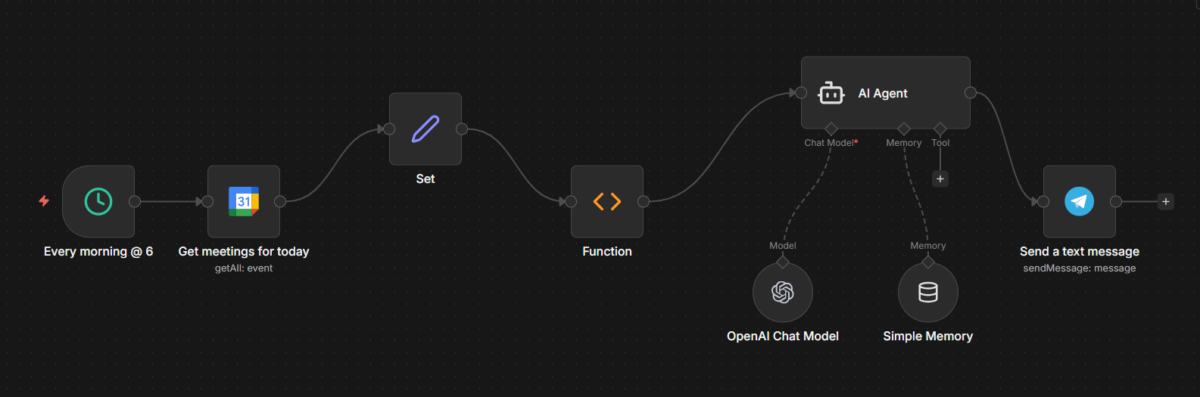
Architecture Overview
The AI agent consists of the following components:
- Schedule Trigger (n8n) – Runs the workflow daily at 6:00 AM
- Google Calendar Node – Retrieves today’s meetings
- Set Node – Normalizes and prepares event data
- Code Node (JavaScript) – Handles time zone conversion and message formatting
- OpenAI Node – Improves message tone and clarity
- Telegram Node – Sends the final reminder message
This modular design makes the workflow scalable and easy to maintain.
Step 1: Scheduling the Workflow
We begin by using the Schedule Trigger node in n8n.
Configuration:
- Mode: Every Day
- Time: 06:00 AM
- Timezone: Your local timezone
This ensures the agent runs automatically every morning without manual intervention.
Step 2: Fetching Meetings from Google Calendar
Next, we use the Google Calendar node to retrieve events for the current day.
Key settings:
- Operation: Get Many Events
- Time Min: Start of the day
- Time Max: End of the day
- Calendar: Primary (or a specific calendar)
This node provides structured event data including:
- Event name
- Start date and time
- Time zone
- Guest list
Step 3: Data Normalization with the Set Node
To make downstream processing easier, we use a Set node to standardize the fields:
Example fields:
Name→ Event summaryTime.dateTime→ Event start timeTime.timeZone→ Event time zoneGuests→ Attendee emails
This step ensures clean and predictable input for the code logic.
Step 4: Time Zone Conversion and Message Formatting
Handling time zones correctly is critical for calendar-based automation. Below is the JavaScript code used in the Code node:
let message = "*Your meetings today are:* \n";

for (item of items) {
  const time = new Date(item.json.Time.dateTime);
  const formattedTime = new Intl.DateTimeFormat({
    hour: 'numeric',
    minute: 'numeric',
    timeZone: item.json.Time.timeZone
  }).format(time);

  message += `* ${item.json.Name} | ${formattedTime}\n`;

  if (item.json.Guests && item.json.Guests.length > 0) {
    message += ' - ';
    item.json.Guests.forEach((guest, index) => {
      message += `${guest.email}${index < item.json.Guests.length - 1 ? ', ' : ''}`;
    });
    message += '\n';
  } else {
    message += ' ;- No guests\n';
  }
}

return [{ json: { message } }];
Why This Matters
- Converts meeting times accurately based on each event’s timezone
- Formats output for readability
- Produces a Telegram-ready Markdown message
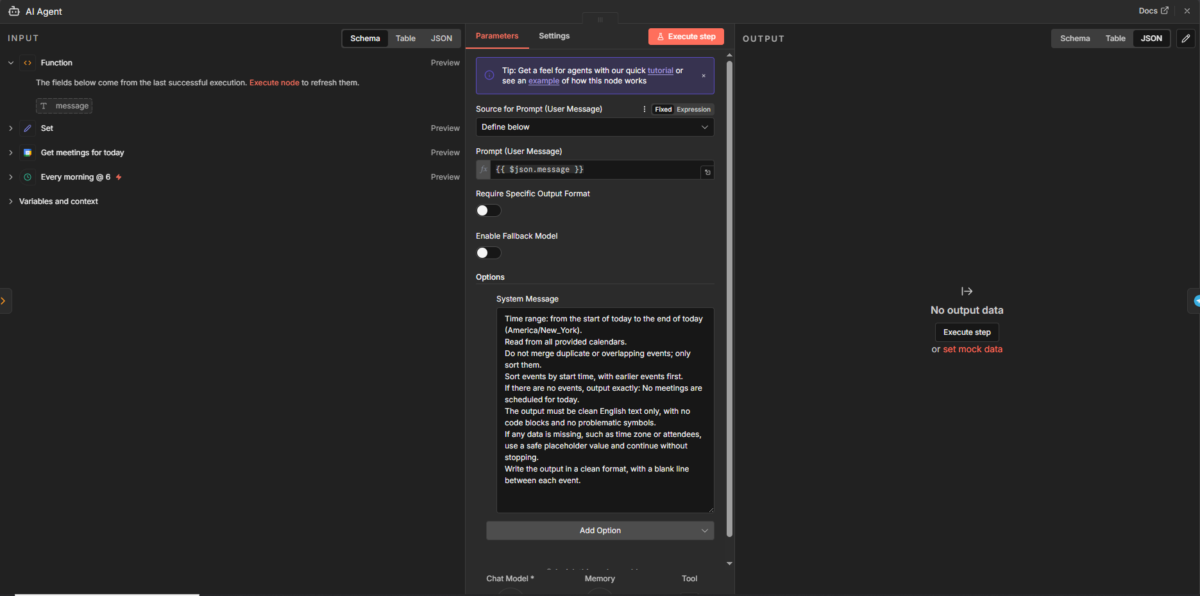
Step 5: Enhancing the Message with OpenAI
After generating the raw message, we pass it to an OpenAI node to enhance clarity and tone.
Typical prompt example:
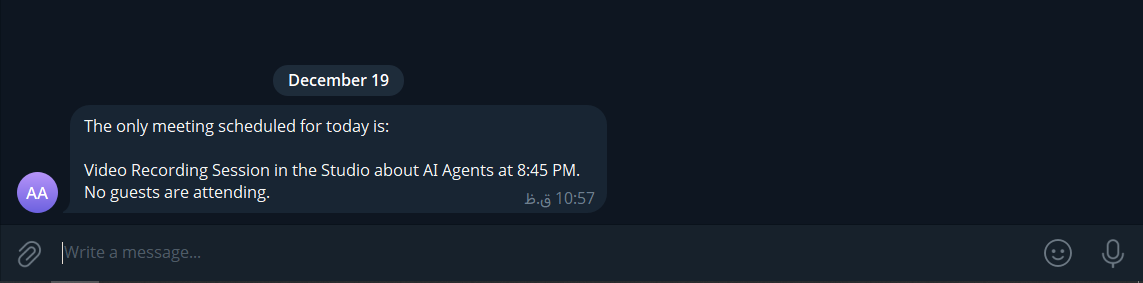
“Rewrite the following meeting reminder in a friendly, professional tone suitable for a daily Telegram notification.”
This transforms the reminder into a more human-like, AI-assisted notification — a key characteristic of a true AI Agent.
Prompt:
“Time range: from the start of today to the end of today (America/New_York).
Read from all provided calendars.
Do not merge duplicate or overlapping events; only sort them.
Sort events by start time, with earlier events first.
If there are no events, output exactly: No meetings are scheduled for today.
The output must be clean English text only, with no code blocks and no problematic symbols.
If any data is missing, such as time zone or attendees, use a safe placeholder value and continue without stopping.
Write the output in a clean format, with a blank line between each event.”
Step 6: Sending the Reminder via Telegram
Finally, we use the Telegram Bot node to deliver the message.
Configuration:
- Chat ID: Target user or group
- Message: Output from OpenAI or Code node
- Parse Mode: Markdown
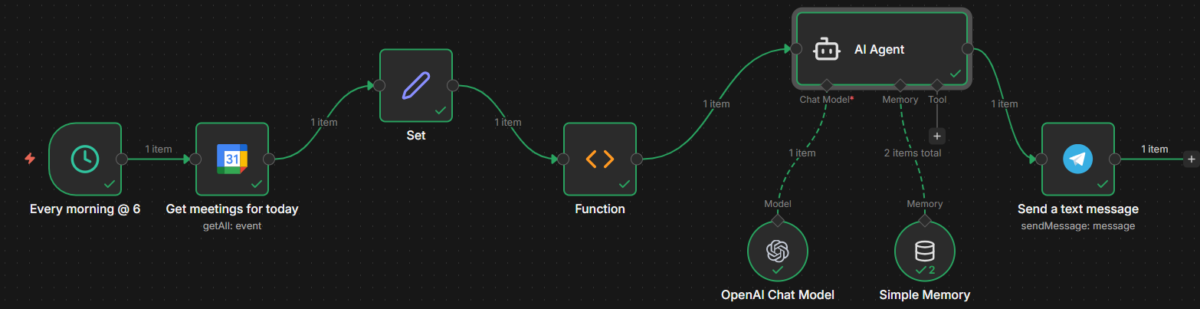
The result is a clean, well-formatted daily meeting summary delivered directly to Telegram.
Benefits of This AI Agent
- ✅ Fully automated daily execution
- 🌍 Accurate time zone handling
- 🤖 AI-enhanced messaging
- 🔗 Seamless integration with Google Calendar
- 📩 Instant delivery via Telegram
This workflow demonstrates how n8n can be used as a powerful AI agent orchestration platform.
Conclusion
By combining n8n, Google Calendar, JavaScript, OpenAI, and Telegram, we can build a robust and intelligent Daily Meeting Reminder Agent. This approach goes beyond simple automation and enters the realm of AI agents — systems that not only execute tasks but also understand, format, and communicate information effectively.
If you are looking to build practical AI agents without heavy backend development, this architecture is an excellent starting point.






[…] AI agent, on the other hand, is designed to achieve a goal. Instead of simply responding to a prompt, an AI […]
Thanks,